Bluetooth Transmitter and Receiver 2-in-1
Quick User Guide

Any questions? Contact:
[email protected]
(Response Time:4-24h,excl. holidays)
MANUFACTURER
ShenZhen 1Mii Technologies Limited.
Address: 4th FI, Bldg B, Runfeng Industrial Park, No. 4197 Baoan Blvd., Gushu Community, Xixiang St., Baoan Dist., Shenzhen, China.
www.1mii.com MADE IN CHINA
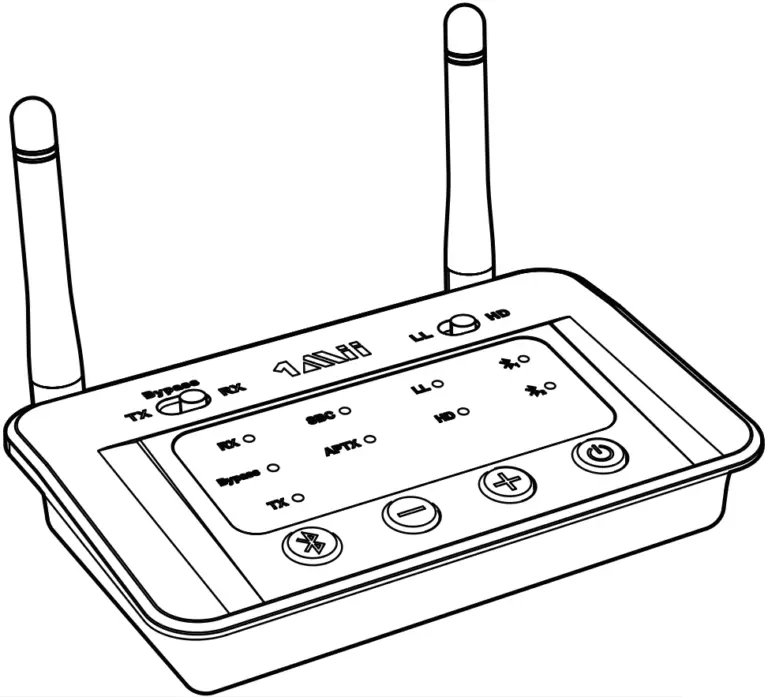
Product overview & Basic operation

Basic operation
| Button | Function | Operation |
LL 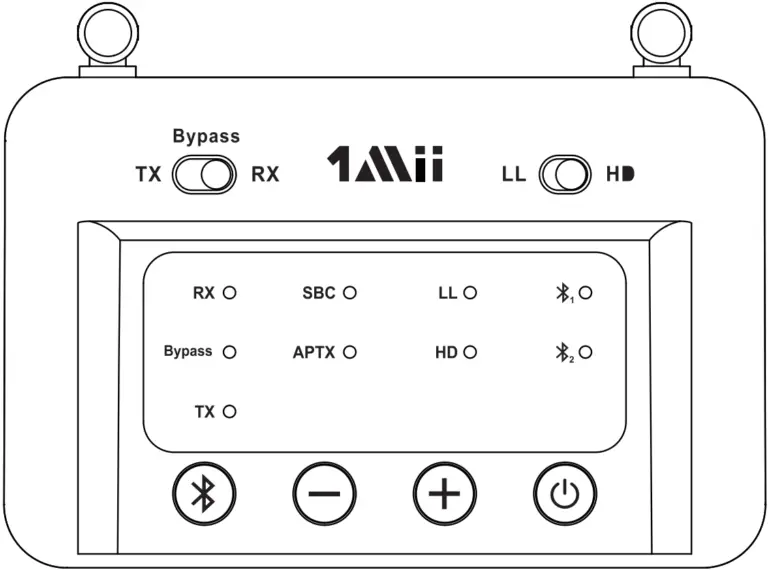 HD HD |
Low latency mode | Slide to LL to enter low latency mode. |
| High definition mode | Slide to HD to enter high definition mode. | |
TX  RX RX |
Transmitter mode | Slide to TX to enter transmitting mode. |
| Receiver mode | Slide to RX to enter receiving mode. | |
| Bypass mode | Slide to “Bypass” to enter Bypass mode. | |
 |
Enter pairing mode | Hold this button for about 2 seconds. |
| Reconnect | Short press once. | |
| Restored factory default settings | Hold this button for about 10 seconds.
All the LED flashes together 2 times |
|
 |
Volume down/Previous song | In AUX audio mode, short press once (TX mode doesn’t support). |
 |
Volume up/ Next song | In AUX audio mode, short press once. (TX mode doesn’t support). |
 |
Power on Power off |
Short press  to power on to power onPress and hold 1 second to power off |
| Qualcomm aptX is a product of Qualcomm Technologies, Inc. and/or its subsidiaries. | ||
Status indicators
| Indicator | Status |
| RX | In receiving mode |
| Flashes Blue and Red alternately to indicate BO3Pro in pairing mode | |
| TX | In transmitting mode. |
| Flashes Blue and Red alternately to indicate BO3Pro in pairing mode | |
| Bypass | Bypass mode |
| LL | Connected with aptX low latency or Fast stream codec |
| HD | Connected with aptX HD codec |
| SBC | Connected with SBC codec |
| APTX | Connected with APTX codec |
 |
Device 1 is connected |
 |
Device 2 is connected |
Note: If B03Pro fail to pair, hold  button for 2s to enter pairing mode.
Pair with the second device
- Set second headphones/speaker to pairing mode.
- Set B03Pro to pairing mode again, hold the button for 2s until the TX LED flashes Blue and Red.
- Wait until connected.
As a Wireless Transmitter(TX mode)
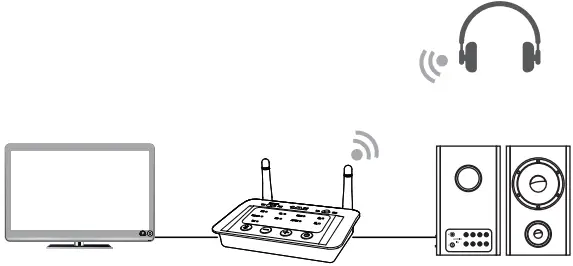
1. Connect B03Pro to power supply & Connect suitable cable to TV
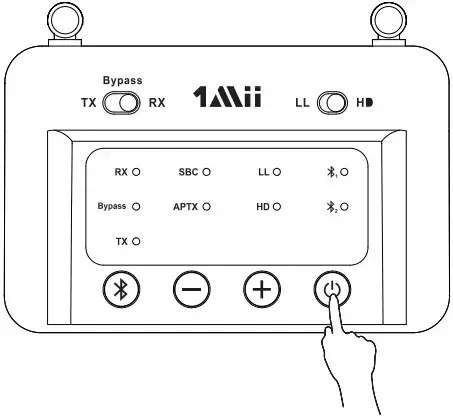

2. Power on
Short press  to power on
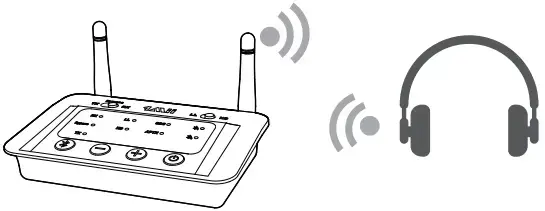
Slide mode switch to “TX” side.
3. Pair and connected
 “TX” LED flash blue and red alternately
B03Pro will auto-enter pairing mode. Set your Bluetooth headphone/speaker to pairing mode. Wait, they will pair and connected.
Enjoy
As a Wireless Receiver (RX mode)
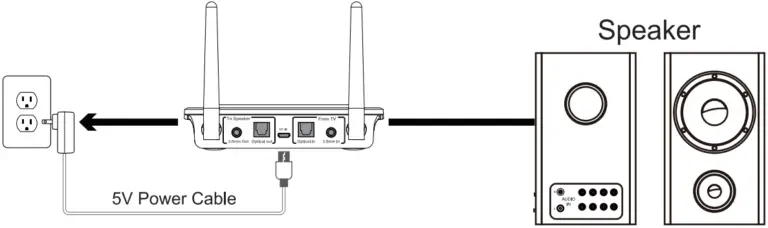
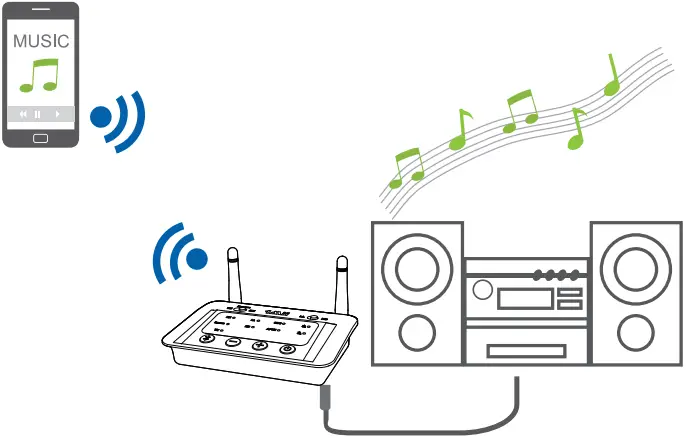
1. Connect B03Pro to power supply & Connect suitable cable to speaker

2. Power on
Short press 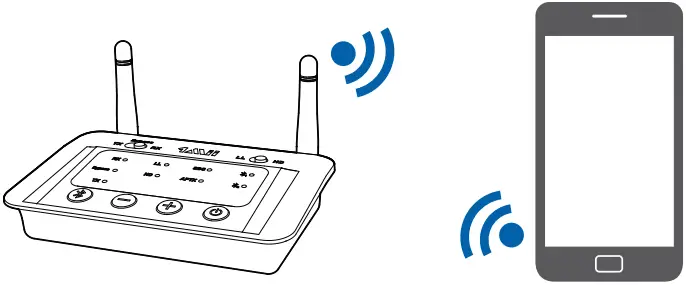 to power on
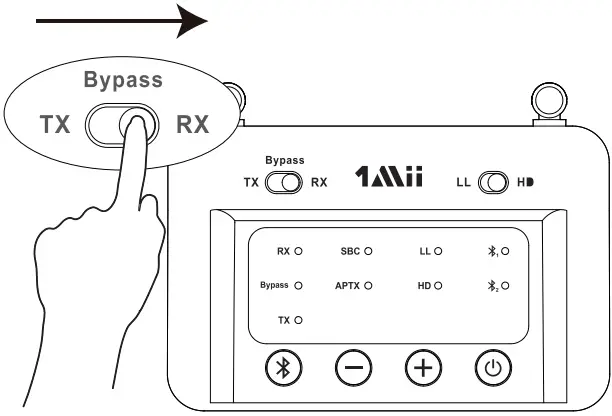
Slide mode switch to “RX” side.
3. Pair and connected
 “RX” LED flash blue and red alternately
B03Pro will auto-enter pairing mode. Active Bluetooth on your phone or other device & Find “B03Pro” to connect.
Enjoy
Bypass mode (Non-Bluetooth)
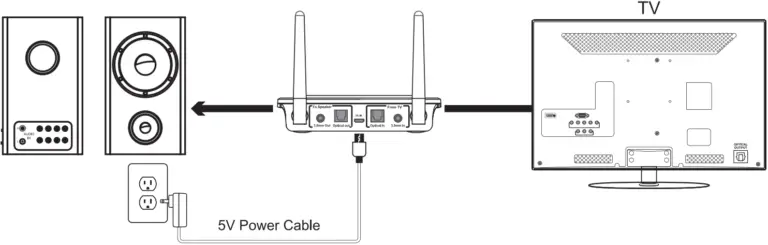
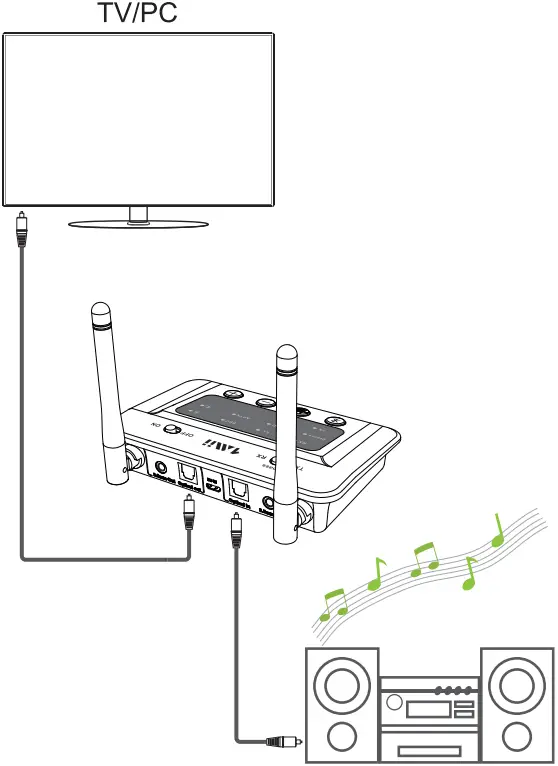
1. Connect B03Pro to power supply & Connect suitable cable to speaker and TV
2. Power on
Short press to power on

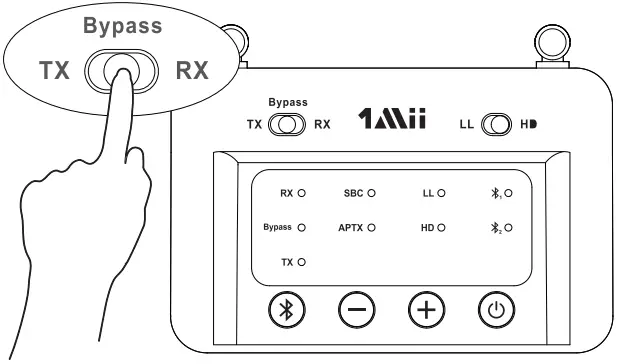
Slide mode switch to “Bypass” side.
3 Enjoy
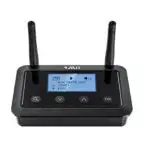

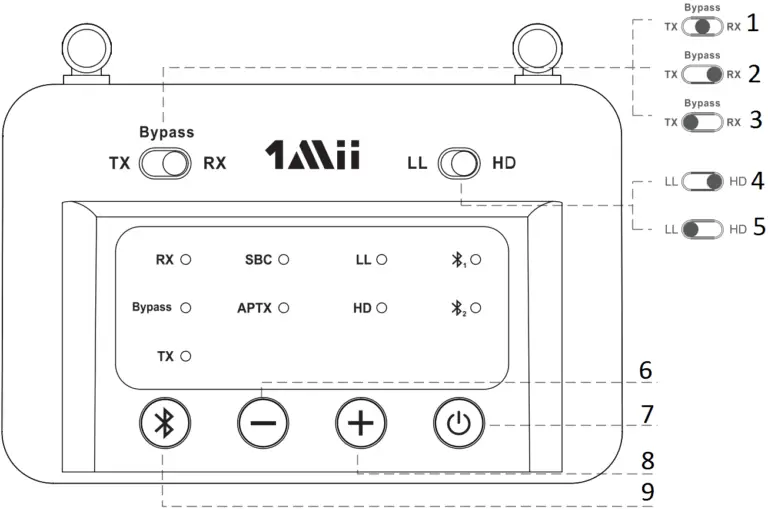
- Slide to to enter
- Slide to to enter
- Slide to to enter
- High definition mode
- Low latency mode
- Volume down / Previous song
- Power ON/OFF
- Volume up / Next song
- Enter paring mode: Hold this button for about 2 seconds.
Quick User Guide for B03Pro
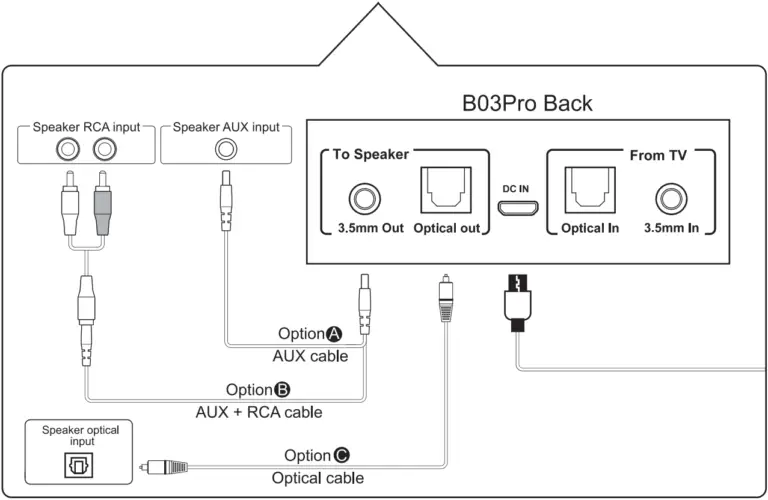
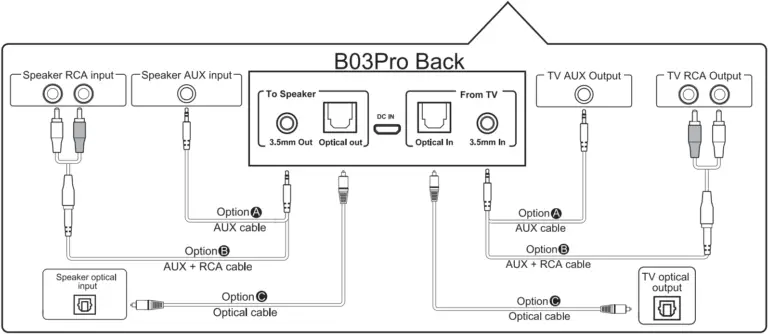
1). Connect audio source (TV, DVD etc.) to B03Pro “From TV” port with the audio cables provided (optical or AUX/RCA).
2). Connect 1mii B03Pro to power source (TV, PC USB socket or power adapter) with USB cable.
3). Short press button to power on.
4). Slide Mode switch to the “TX” position.
5). Pair B03Pro with your Bluetooth-enabled headsets/speakers.
- B03Pro pairing mode = TX LED flash blue / red alternately fast.
– First time use: B03Pro auto enter pairing mode (with clear memory).
– Afterward: press button for 2 seconds to enter. - Set your headsets/speakers to pairing mode refer to its user manual.
- Wait and connected.
1). Connect your speaker to B03Pro “To Speaker” port with the audio cable provided (optical or AUX/RCA).
2). Connect B03Pro to power source with USB cable and adapter.
3). Short press button to power on.
4). Slide Mode switch to the “RX” position.
5). Pair B03Pro with your Bluetooth-enabled phone/pc/tablet.
- B03Pro pairing mode = RX LED flash blue / red alternately fast.
– First time use: B03Pro auto enter pairing mode (with clear memory).
– Afterward: press button for 2 seconds to enter. - Active Bluetooth on your phone or other device to find “B03Pro”to connect.
- Wait and connected.
1). Connect audio source (TV, DVD etc.) to 1mii BO3Pro “From TV” port with the audio cables provided (optical or AUX/ RCA).
2). Connect your speaker to B03Pro “To Speaker” port with your own audio cable (optical or AUX/RCA).
3). Connect B03Pro to power source with USB cable and adapter.
4). Short press button to power on.
5). Slide Mode switch to the “Bypass” position.
6). Ready for use.
Important Notice:
- Make sure your (TV) output is valid. AUX test with earphones.
- Does NOT support Dolby / DTS under OPT.
- Bypass can only work with the same type of input / output i.e. AUX input to AUX output or OPT input to OPT output.
1) I am having trouble pairing and connecting to my Bluetooth device.
Please check the following:
- Your wireless device supports the wireless profiles listed in the specifications.
- B03 and your device are next to each other or within 3 feet / 1 meter.
- Make sure both B03 and the wireless device are in pairing mode.
2) After connecting and pairing with my wireless device, I cannot hear any music from my sound system.
In Optical mode, B03 support device with sampling rate under 48kHz.
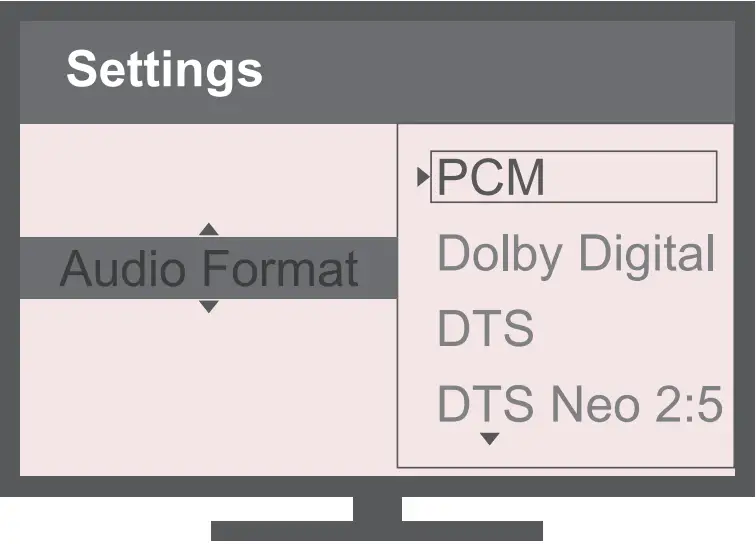
Note: Need to make sure TV audio format is set to PCM(Fig-1) and TV sound out as “External Speakers”(Fig-2)

Fig-1 Set your TV Audio Format to “PCM”(IMPORTANT)

Fig-2 Set your TV Speaker to “External Speaker”
This device complies with Part 15 of the FCC Rules. Operation is subject to the following two conditions:
(1) This device may not cause harmful interference, and (2) this device must accept any interference received, including interference that may cause undesired operation.
NOTE 1: This equipment has been tested and found to comply with the limits for a Class B digital device, pursuant to part 15 of the FCC Rules. These limits are designed to provide reasonable protection against harmful interference in a residential installation. This equipment generates, uses and can radiate radio frequency energy and, if not installed and used in accordance with the instructions, may cause harmful interference to radio communications. However, there is no guarantee that interference will not occur in a particular installation. If this equipment does cause harmful interference to radio or television reception, which can be determined by turning the equipment off and on, the user is encouraged to try to correct the interference by one or more of the following measures:
– Reorient or relocate the receiving antenna.
– Increase the separation between the equipment and receiver.
– Connect the equipment into an outlet on a circuit different from that to which the receiver is connected.
– Consult the dealer or an experienced radio/TV technician for help.
NOTE 2: Any changes or modifications to this unit not expressly approved by the party responsible for compliance could void the user’s authority to operate the equipment.
]]>